IPTV on Mac
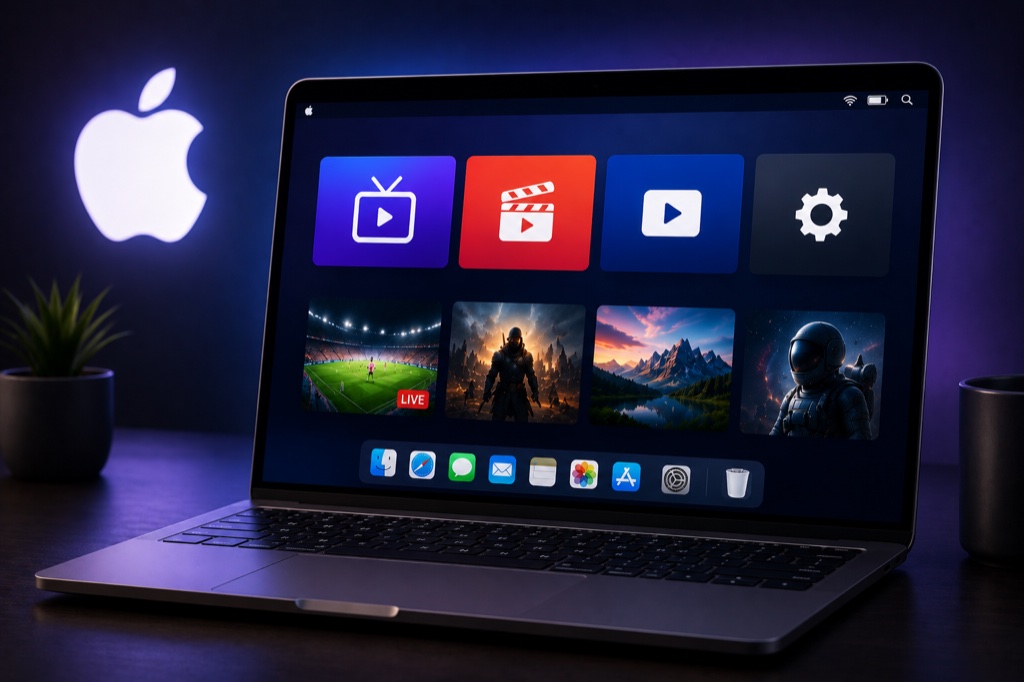
Stream IPTV on your Mac with the best media players for macOS. Compatible with macOS 10.13 and later.
Requirements
- macOS 10.13 (High Sierra) or later
- Minimum 4GB RAM
- Active IPTV subscription
- Stable internet connection
Method 1: VLC Media Player
- Visit videolan.org
- Download VLC for macOS
- Open the .dmg file
- Drag VLC to Applications folder
- Launch VLC from Applications
- Click File → Open Network
- Paste your M3U playlist URL
- Click Open
- Save playlist: File → Save Playlist
Method 2: IINA (Modern Mac Player)
- Download IINA from iina.io
- Install and launch IINA
- Click File → Open URL
- Enter your M3U playlist URL
- Press Enter
- Enjoy native macOS IPTV experience
Troubleshooting
Buffering Issues
- Check your internet speed (minimum 10 Mbps recommended)
- Use wired Ethernet connection instead of WiFi
- Lower video quality in player settings
- Clear app cache and restart device
- Try a different server from your provider
Channels Not Loading
- Verify your IPTV subscription is active
- Double-check login credentials (case-sensitive)
- Ensure server URL is correct
- Contact your IPTV provider for support
- Try alternative IPTV player app
Related Guides
→ VPN for Mac
→ Playlist Guide
→ Buffering Fix
Frequently Asked Questions
❓ Can I watch IPTV on Mac?
Yes, you can watch IPTV on Mac using VLC Media Player, IINA, or GSE Smart IPTV from the Mac App Store.
❓ What is the best IPTV player for Mac?
VLC is the most popular free option. IINA offers a modern macOS-native experience. GSE Smart IPTV is great for advanced features.
❓ Is IINA better than VLC for Mac?
IINA is designed specifically for macOS with native look and feel. VLC is more feature-rich. Both are excellent choices.
❓ Can I use AirPlay with IPTV on Mac?
Yes, you can stream IPTV from your Mac to Apple TV using AirPlay for big screen viewing.
❓ Why won’t IPTV app open on my Mac?
Go to System Preferences → Security & Privacy → Allow the app. Right-click the app and select Open to bypass security warnings.