IPTV on LG TV
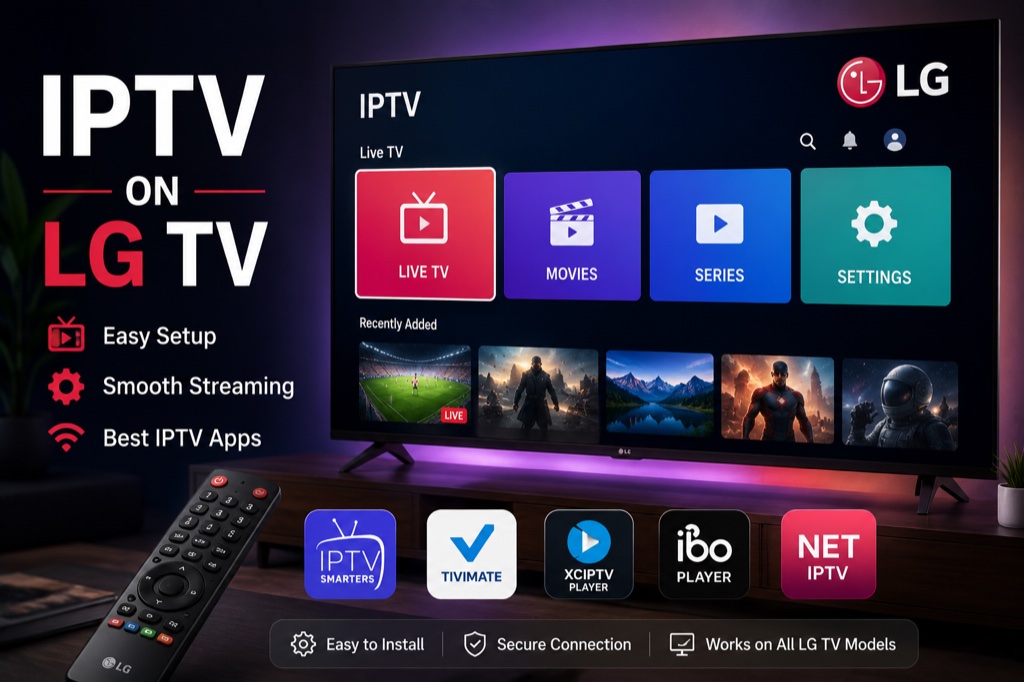
LG Smart TVs with webOS support IPTV through SS IPTV app. This guide covers installation and setup on LG TVs.
Requirements
- LG Smart TV with webOS
- Active IPTV subscription
- Internet connection
- LG account
Method 1: SS IPTV Installation
- Press Home button on LG remote
- Open LG Content Store
- Search for SS IPTV
- Click Install
- Wait for installation to complete
- Launch SS IPTV app
- Navigate to Settings
- Select Content → Add
- Choose External Playlist
- Enter your M3U playlist URL
- Click Save
- Return to main screen to see your channels
Troubleshooting
Buffering Issues
- Check your internet speed (minimum 10 Mbps recommended)
- Use wired Ethernet connection instead of WiFi
- Lower video quality in player settings
- Clear app cache and restart device
- Try a different server from your provider
Channels Not Loading
- Verify your IPTV subscription is active
- Double-check login credentials (case-sensitive)
- Ensure server URL is correct
- Contact your IPTV provider for support
- Try alternative IPTV player app
Related Guides
→ Samsung TV Guide
→ Playlist Setup
→ Buffering Solutions
Frequently Asked Questions
❓ Can I watch IPTV on LG Smart TV?
Yes, LG Smart TVs with webOS support IPTV through the SS IPTV app available in LG Content Store.
❓ Is SS IPTV free for LG TV?
Yes, SS IPTV is completely free to use on LG Smart TVs. No subscription or activation fee required.
❓ How do I add M3U playlist to LG TV?
Open SS IPTV, go to Settings → Content → Add → External Playlist, then enter your M3U URL.
❓ Does LG TV support Xtream Codes?
Yes, SS IPTV on LG TV supports Xtream Codes API for easy playlist management.
❓ Why is IPTV not working on my LG TV?
Check your internet connection, verify your playlist URL is correct, and ensure SS IPTV app is updated to the latest version.