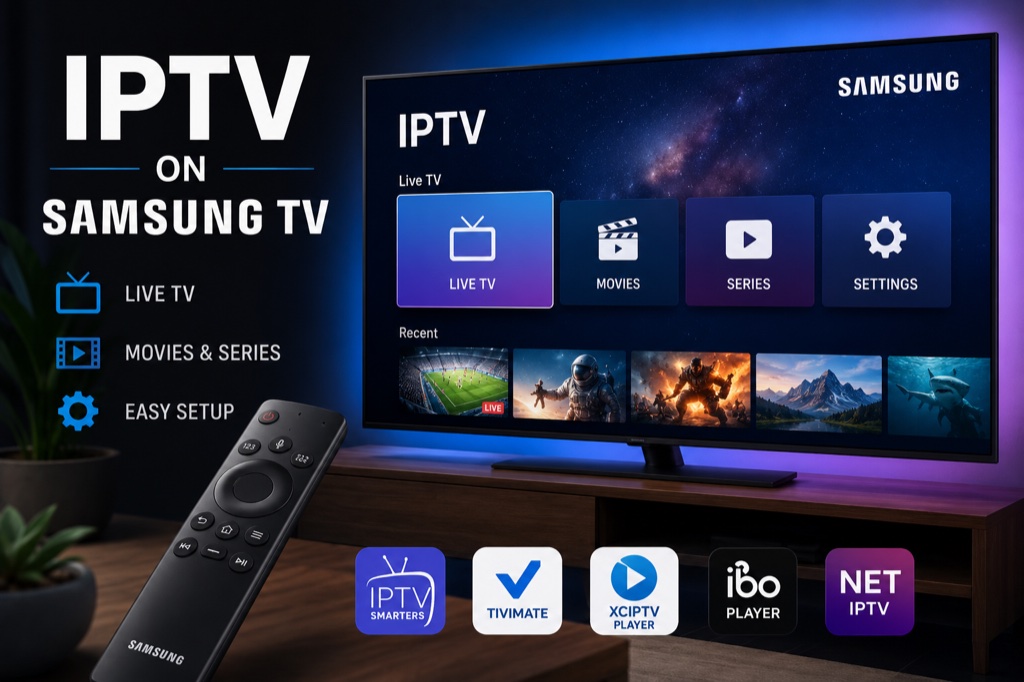
Samsung Smart TVs offer multiple ways to stream IPTV content. This comprehensive guide covers all methods to set up IPTV on your Samsung TV.
Requirements
- Samsung Smart TV (2015 or newer recommended)
- Active IPTV subscription with Xtream Codes or M3U URL
- Stable internet connection (minimum 10 Mbps)
- Samsung account (for app installation)
Method 1: Smart IPTV App
- Press Home button on Samsung TV remote
- Navigate to Apps section
- Search for Smart IPTV in the app store
- Download and install the Smart IPTV app
- Open Smart IPTV and note your MAC address
- Visit siptv.eu/activation on your computer
- Enter your MAC address and upload your M3U playlist
- Pay the one-time activation fee (around $6)
- Restart Smart IPTV app on your TV
- Your channels should now load automatically
Method 2: SS IPTV (Free Alternative)
- Open Samsung Apps store
- Search for SS IPTV
- Install the application
- Open SS IPTV app
- Go to Settings → Content
- Click Add to add your playlist
- Enter your M3U URL or Xtream Codes details
- Save and return to main screen
- Your channels will appear in the playlist
Troubleshooting
Buffering Issues
- Check your internet speed (minimum 10 Mbps recommended)
- Use wired Ethernet connection instead of Wi-Fi
- Lower video quality in player settings
- Close other apps and restart device
- Try a different server from your provider
Channels Not Loading
- Verify your IPTV subscription is active
- Double-check login credentials (username/password)
- Ensure server URL is correct
- Contact your IPTV provider for support
- Try alternative IPTV player app
Related Guides
Frequently Asked Questions
1. Can I install IPTV on Samsung Smart TV?
Yes, Samsung Smart TVs support IPTV through apps like Smart IPTV and SS IPTV available in the Samsung Apps store.
2. Is Smart IPTV free on Samsung TV?
Smart IPTV requires a one-time activation fee of around $6. SS IPTV is a free alternative with similar features.
3. Why is my IPTV not working on my Samsung TV?
Make sure you’ve activated Smart IPTV with your MAC address, or uploaded your playlist correctly. Check your internet connection and IPTV subscription status.
4. Do I need to jailbreak Samsung TV for IPTV?
No, Samsung TVs don’t need jailbreaking. You can install IPTV apps directly from the Samsung Apps store.
5. Which Samsung TV models support IPTV?
Most Samsung Smart TVs from 2015 onwards support IPTV apps. Check the Samsung Apps store on your TV to confirm app availability.